 PDF Tuner
Less margin. More page.
Automatically detect the content area and trim excess white space, making text easier to read on smaller screens.
The PDF Tuner toolkit
Choose a preset, then apply only the adjustments your document needs. Everything runs locally on your Mac.
Automatically detect the content area and trim excess white space, making text easier to read on smaller screens.
Create clickable bookmarks from recognizable headings in text-based PDFs, with multilingual heading detection.
Turn supported multi-column text PDFs into a single-column reading layout. Results depend on document structure; scanned PDFs have limited support.
Adjust grayscale and contrast, or enhance scanned pages with stroke preservation and optional photo detection. Black-and-white mode converts pages to images.
Use Clarity First, Balanced, or Size First presets. Optimize images and fonts while preserving body content and reading links. Results vary by PDF.
Preview layouts with 30+ e-reader screen profiles, process multiple files, and export separate reading copies without changing your originals.
Check before you export
Grayscale conversion preserves existing searchable text. Scanned black-and-white enhancement converts pages to images and does not retain searchable text. Optional photo detection can preserve grayscale detail, but may miss some photos.
Watermark cleanup attempts to remove recognizable watermarks; results vary and affected pages may lose text search. Preview your changes and inspect the generated file.
Read the practical guide →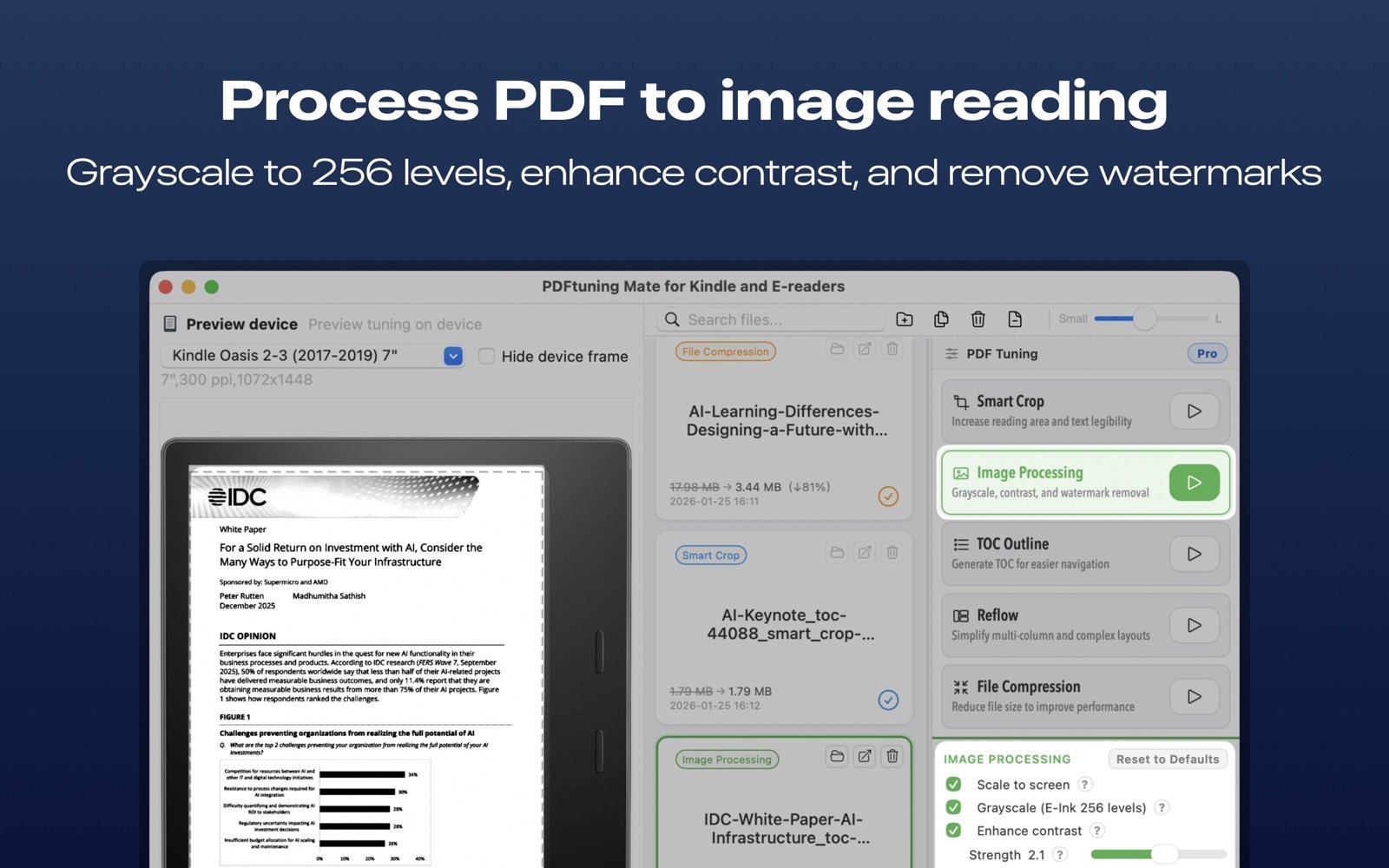
Free features & Pro
A one-time Pro upgrade removes upgrade prompts and supports continued development. If Send to Kindle is installed on your Mac, use “Send to…” to hand off your optimized PDF for delivery.