

PDF TUNER SUPPORT

Make every PDF easier to read.

A practical guide to preparing papers, books, scans, and technical documents for Kindle and other reading devices.

Your PDFs are processed on your device. They are never uploaded by PDF Tuner.

From PDF to reading-ready in four steps

01

Add your PDF

Drag one or more PDF files into the workspace. Your original files stay untouched.

02

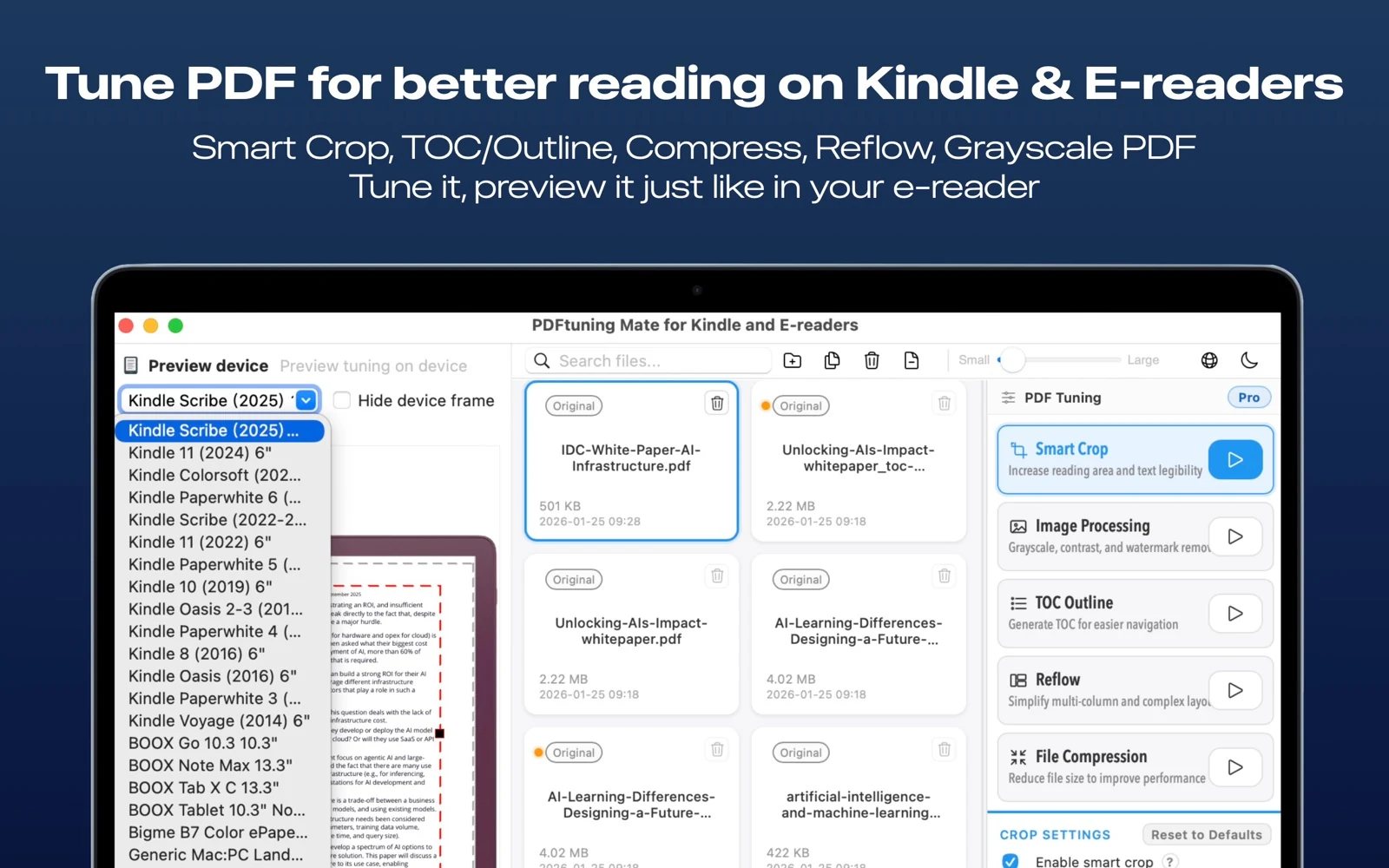
Pick a target device

Choose the reader or screen closest to yours, then use the live preview to judge page size and margins.

03

Enable only what helps

Start with Smart Crop. Add a TOC, Reflow, image processing, or compression only when the document needs it.

04

Compare and export

Check the Original and Result previews, then save or send the optimized copy where you read.

Choose the smallest useful adjustment

Smart Crop

Removes unnecessary white margins while keeping the page’s useful content in view.

Best for: papers, books, and PDFs with oversized margins.

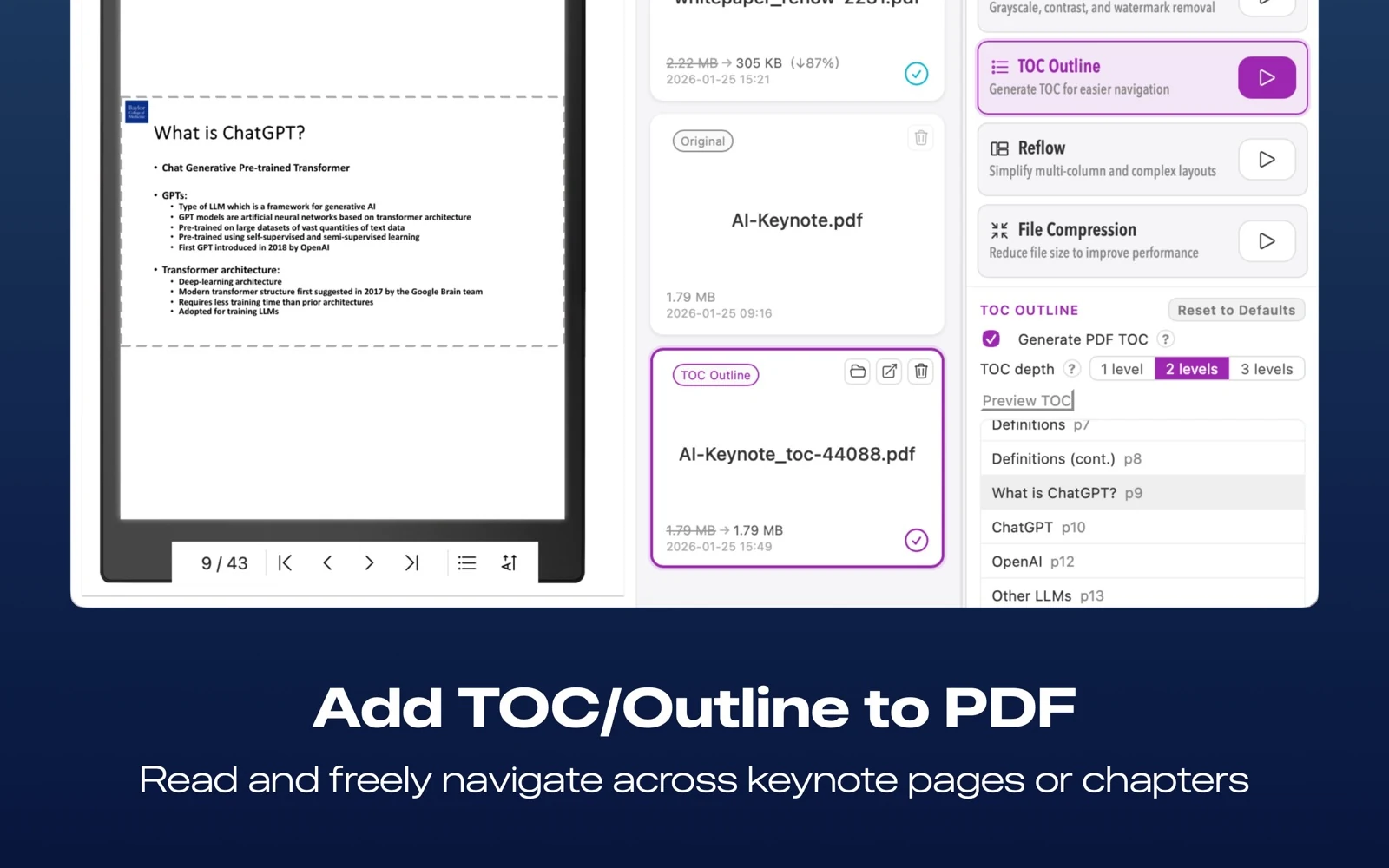
Table of Contents

Builds clickable PDF bookmarks from detected headings when the original document has no usable outline.

Best for: long reports, manuals, and chapter-based books.

Smart Reflow

Turns text-based wide or multi-column layouts into a more comfortable linear reading flow.

Best for: selectable-text articles and technical PDFs.

Image Processing

Improves contrast and clarity for scanned pages. Use black-and-white enhancement when gray scans need stronger text.

Best for: scans, photocopies, and image-heavy PDFs.

Compression

Reduces file size by optimizing embedded images and resolution while leaving text pages intact where possible.

Best for: storage limits and wireless transfer.

Device Preview

Shows the result in a reading-focused preview before you export, so you can tune for the screen you actually use.

Best for: checking margins, type size, and page balance.

Good starting points for real documents

Academic paper with wide margins

Start with Smart Crop. Add a Table of Contents if the paper contains clear section headings. Keep Reflow off unless the columns are genuinely hard to read.

Scanned or photocopied book

Use Smart Crop first, then Image Processing. If the page is gray or low-contrast, try black-and-white enhancement; use Compression last to balance clarity and size.

Dense two-column technical document

Try Smart Reflow only when text can be selected in the original PDF. For image-only scans, Smart Crop and Image Processing usually give a more reliable result.

File is too large to transfer comfortably

Use Compression and preview the result at your target device size. Lower resolution gradually instead of applying every image option at once.

Answers to common questions

Why is Smart Reflow unavailable or not useful for this file?

Reflow needs a usable text structure. Scanned, image-only, encrypted, or unusually structured PDFs may not provide enough text for reliable reflow. In those cases, use Smart Crop and Image Processing instead.

Why did my optimized PDF become larger?

Rasterizing pages or applying image-heavy adjustments can increase file size. Use Compression and lower image resolution step by step until size and readability are balanced.

Will PDF Tuner change my original PDF?

No. PDF Tuner creates an optimized result. Keep the original in your library and compare it with the result before sharing or replacing anything.

Which tool should I try first?

Smart Crop is the best default. It often makes a PDF more comfortable on a smaller screen without changing the document’s reading order or text structure.

Your documents stay yours.

PDF Tuner processes PDFs locally and does not upload or share document contents. Review the full policy for local settings, StoreKit purchases, retention, and external links.

Read the PDF Tuner Privacy Policy